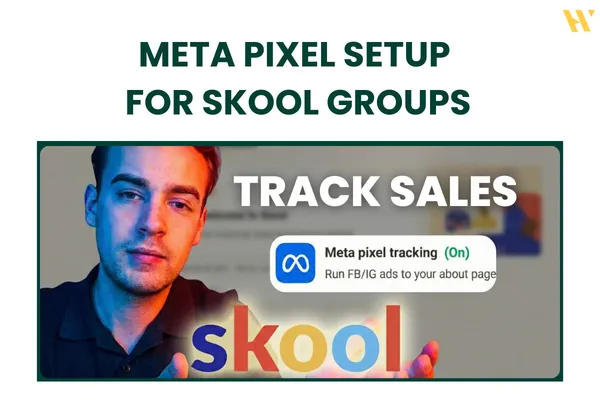
Meta Pixel Setup for Skool Groups: Track Free and Paid Members Correctly
Running Meta ads for a Skool group without proper tracking is one of the most common mistakes I see. People spend money on ads, see members joining, but have no real data to optimize from. No clear conversions, no scalable system, just hope.
This guide shows you exactly how to set up the Meta Pixel for Skool groups so you can track what actually matters. Whether you are running ads to a free Skool community or selling access to a paid group, the setup is straightforward once you understand the logic behind it.
If you want Meta ads to work in 2026 and beyond, this is not optional.
Why Meta Pixel Tracking Matters for Skool Groups
Meta ads are optimized based on signals. If Meta does not receive clean conversion data, your campaigns will struggle no matter how good your ads are.
For Skool groups, tracking allows you to:
Measure how many people actually join your group
Optimize campaigns for registrations or purchases
Scale ads with confidence instead of guessing
Separate free group growth from paid group revenue
Without the Meta Pixel connected properly, Meta cannot learn who your ideal members are. You end up paying more per result and your campaigns stall.
Step 1: Create a New Meta Pixel in Business Manager
Start inside your Meta Business Manager.
Go to:
Business Settings
Data Sources
Datasets
Click Add
Create a new dataset and name it something clear like:
Skool Group Pixel
Paid Skool Pixel
Keep the recommended setup selected and complete the creation process.
Once the pixel is created, exit the setup screen. You do not need to install code manually on Skool. The integration handles this for you.
Step 2: Assign Yourself Full Control of the Pixel
This step is skipped by many people and causes unnecessary issues later.
Inside the dataset settings:
Click Assign People
Select your profile
Enable full control
Save changes
Without full control, you may not be able to connect the pixel or generate access tokens later.
Step 3: Connect the Pixel to Your Ad Account
If you plan to run ads, the pixel must be linked to the ad account.
In the same dataset settings:
Click Assign Assets
Select your ad account
Click Add
This allows your campaigns to use the pixel events for optimization.
Step 4: Enable Meta Pixel Tracking Inside Skool
Now move over to Skool.
Inside your Skool group:
Go to Settings
Open Plugins
Search for Meta Pixel Tracking
If this is a new group, the plugin will be turned off by default.
Click Edit and turn it on.
At this stage, Skool will ask for two things:
Meta Pixel ID
Access Token
Step 5: Find Your Meta Pixel ID
Go back to Meta Events Manager.
Select your new pixel and:
Open Settings
Look for the Dataset ID at the top
Click the number to copy it
Return to Skool and paste this value into the Pixel ID field.
Step 6: Generate an Access Token
Still inside Events Manager:
Scroll down to Setup with Direct Integration
Generate a new access token
Copy the token
Paste this token into the Access Token field inside Skool and click Connect.
Once connected, Skool will confirm that the pixel is active.
Step 7: Test Events and Verify Tracking
Inside the Skool plugin, click Test Events.
If everything is set up correctly, you should see a success confirmation.
To double check inside Meta:
Go to Events Manager
Open Test Events
Paste your Skool group About page URL
Trigger a page load
You should see PageView events firing.
This confirms that Meta is receiving data from your Skool group.
Which Conversion Event Should You Optimize For?
This is where most people get it wrong.
Free Skool Group
If your Skool group is free, optimize for:
Complete Registration
This tells Meta to find people who are likely to join communities, not just click links.
Paid Skool Group or Free Trial
If your Skool group is paid or includes a free trial, optimize for:
Purchase
Even with a free trial, Skool fires a purchase event. Meta needs this signal to find buyers, not freebie hunters.
Using the wrong event will slow down performance and inflate your costs.
Campaign Structure Tips for Skool Ads
Once tracking is set up correctly:
Use conversion campaigns only
Avoid traffic or engagement objectives
Keep your funnel simple
Let Meta optimize based on real signals
Tracking is not about perfection. It is about giving Meta enough clean data to learn.
Common Mistakes to Avoid
Using one pixel for everything without structure
Forgetting to assign the pixel to the ad account
Optimizing for the wrong conversion event
Never testing events before launching ads
Every one of these mistakes costs money.
Final Thoughts
Setting up the Meta Pixel for Skool groups is not complicated, but it must be done correctly. Once tracking is in place, everything else becomes easier. Better optimization, better costs, and clearer decisions.
If you are serious about growing a Skool community using Meta ads, this setup is the foundation.
Watch the full step by step video tutorial here:
👉 https://www.youtube.com/watch?v=XtPO3v8eLLw
And if you want more practical Meta ads tutorials like this, subscribe to the channel and stay consistent. This is how you win long term.